
Instructions for the viewers
What is Moniviestin?
Moniviestin is a publishing platform for online multimedia materials: audio, video, images. Moniviestin supports both recordings and live streams and it has been in use at University of Jyväskylä since 2003. Materials can be either public or protected, according to publisher's decision.
Logging in
If you only want to watch and listen to recordings published on Moniviestin, you don't need to log in. Logging in is only required if you want to upload a new recording or edit existing recordings to which you have editing permissions.
To log in, click the Login link in the upper left corner of the page. You can then log in using your University of Jyväskylä user credentials. More detailed instructions for adding and editing recordings can be found on the Instructions for Content Creators page.
Viewing the recordings
Audio and video recordings can be viewed on most modern web browsers on computers and mobile devices. Functionality has been tested on Windows, macOS and Linux computers, as well as Android and Apple mobile devices. Playback starts by clicking the Play button on the video screen.
Viewing a recording protected with a pathkey
If a recording is protected by a pathkey, you will see a message stating: "A pathkey is required to access this media." Enter the pathkey into the text field and click Submit.
The protection of recordings is managed by the content publisher, such as the course instructor. You will see the name and contact details of the pathkey owner when prompted for the pathkey. Moniviestin technical support cannot provide pathkeys. For any questions regarding access, please contact the publisher of the recording directly.
Playback controls
When you move your mouse cursor over the video window, a playback control bar appears. This allows you to navigate to different parts of the recording and adjust settings such as subtitles and playback quality.

Functions from left to right:
- Play/Pause: start and pause media playback
- Speaker button: mute and unmute audio, you can also control volume by moving the volume slider left or right
- Playback time display: elapsed playback time from the beginning of the media and total length of the media
- 1x -symbol: change video playback speed (0,5x - 2x).
- Subtitles symbol: Choose subtitle language or turn subtitles off. This function is only visible when there's subtitles available.
- Playback quality: Choose video playback quality. Default is "Auto", but you can change this setting manually if needed.
- Full screen: Maximize video to the full screen mode. You can return to default view by clicking the same button again.
Keyboard shortcuts during playback
- Spacebar: Play and pause media playback
- Cursor keys left/right: rewind and fast forward the media five seconds
- Number keys 0-9: Jump to certain percentage of the video. For example, if you press "4", playback will jump to 40% of the video's length.
Selecting Subtitle Language
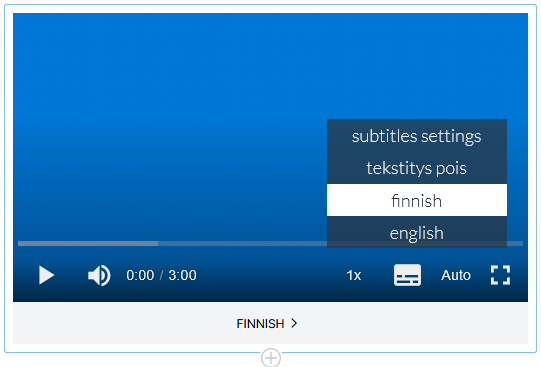
Videos in Moniviestin can have subtitles in multiple languages simultaneously. If subtitles have been published for a video, you can select the desired subtitle language by clicking the subtitle icon at the bottom of the video frame and then choosing the language you want. If you wish to turn off subtitles entirely, select "Tekstitys pois (Subtitles off)."
You can also customize the appearance of subtitles using various settings. You can access these options by clicking the subtitle icon and choosing Subtitles settings.
The following settings can be adjusted:
- Text: Text color and transparency (semi-transparent = partially transparent, opaque = fully opaque)
- Text background: Color and transparency of the background bar behind the text. To make the background fully transparent, select Transparent.
- Caption area background: Color and transparency of the entire subtitle area background.
- Font Size: Size of the subtitle font.
- Text Edge Style: Effects for the font edges—e.g., embossed text or shadow beneath the text.
- Font Family: Type of font used in the subtitles.
Done saves the settings, and Reset restores the subtitle appearance to default settings.
