
Instructions for the content producers
Adding a Media Page (i.e., a New Recording) to Moniviestin
Adding videos begins by creating a new program in the desired folder, named for example after the relevant course. Within the program page, a media page is created for each lecture video of the course, containing the actual video material. You can have as many media pages within a program as needed.
To add new content to the public side of Moniviestin, you must have editing rights to the program page of the relevant course. New program pages and access rights can be requested from the Digital Services video support via the HelpJYU support request form.
Uploading Media
Log in to Moniviestin and open the program page where you want to add content. First, click "Add video or audio recording." You can upload recordings to Moniviestin in several ways:
- Drag media file into the upload window: Locate the desired file on your device, then drag and drop it directly onto the gray window visible in Moniviestin.
- Click the "From my device" icon: This opens your computer or mobile device’s file selection window, allowing you to locate and upload the media file.
- Camera: If your device has a connected webcam, you can record a video directly without leaving Moniviestin.
- Click the "Camera" icon to open the preview window. If your device requests permission to use the camera, accept it. Ensure the correct camera and microphone are selected.
- When the camera image appears and you're ready, click the record button.
- Stop recording by clicking the stop button. Moniviestin will now show a preview of the recorded video so you can check the result. If everything is fine, approve the recording using the accept button below the video. If you don’t want to use the recording, reject it with the cross button.
- Confirm the upload by clicking the green "Upload file" button.
- Audio: If microphone is connected to your device, you can record audio.
- Click the "Audio" icon. If your device requests permission to use the microphone, ensure the correct microphone is selected and accept the request.
- When the waveform meter appears and responds to your speech, you're ready to start. Click the red microphone icon to begin recording.
- Stop recording by clicking the red stop button. You can now preview the audio. If everything is fine, approve it with the blue accept button. If not, reject it with the red cross button.
- Confirm the upload by clicking the green "Upload file" button.
- Screencast: You can record your computer screen content directly for publication in Moniviestin.
- Click the "Screencast" icon. Your browser will first ask for permission to record the screen—select the desired application/window and accept the request.
- When the preview of the selected window appears, you're ready to start. The audio of default microphone will also be recorded, so you can speak during the screen capture. Start recording by clicking the red record icon.
- Stop recording by clicking the red stop button. You can now preview the recording. If everything is fine, approve it with the blue accept button. If not, reject it with the red cross button.
- Confirm the upload by clicking the green "Upload file" button.
Your recording is now being transferred to Moniviestin—please wait a moment for the upload to complete. Next, you can choose additional features to enhance the recording:
- Automatic face blurring: Attempts to detect and blur the faces of all individuals appearing in the video to ensure privacy.
- Dynamic audio normalization: Boosts the audio track so that all speech is heard at a consistent volume (i.e., audio compression).
- Broadband noise reduction: Removes background noise from the audio track.
- Speech normalization: Does not alter the loudness-to-silence ratio but aims to raise the volume to an optimal level for the listener. This is especially useful if the recording was made at a consistently low volume.
- Generate subtitles: Adds subtitles to the video using automatic speech recognition. See the subtitle guide for more information.
- Trim media: You can cut out unnecessary "empty" parts from the beginning and end of the video. When you enable trimming, a preview window opens where you can view and listen to the uploaded recording. Below the video is a timeline with two yellow trimming bars. Drag these bars to set new start and end points for the recording.

Once you’ve selected the features, click Continue. Moniviestin will now apply the post-processing actions to the video. This may take some time depending on the length of the recording and the selected features.
Editing Media Page Settings and Metadata
Once the recording has been uploaded to Moniviestin, you can edit its settings and metadata. The editing mode opens by clicking the blue pencil icon on the left side of the screen. The editing mode closes and changes are saved when you click the blue save icon on the left. Below are highlights of the most essential editing features:
Settings related to the entire Media Page
- Media Page → Title and Description Text: Edit the text information displayed above the video frame.
- Media Page → Short Name: Identifier shown in the video’s URL. Use only letters (a–z), numbers (0–9), and hyphens (-).
- Media Page → Start and Expiry Date: Schedule the media page to appear and disappear at specific times.
- Order Tab: Arrange the sections displayed on the media page as desired—for example, move the description text below the video frame. Each section has a “handle icon” that allows you to drag and drop it to a new location.
Settings Related to the Video Frame
Click the video frame to activate it, then open the Block tab on the right side.
- Alignment: Choose whether the video frame appears minimized on the left or right side of the page, or is displayed at the full width of the page.
- Preview Image: Moniviestin automatically selects a preview image for videos. You can replace it with a custom image file here. You can also set a preview image for audio recordings. Recommended formats: JPG or PNG.
- Settings → Audio Only Mode: Hide the video screen from the media page and show only audio playback controls. Useful for publishing audio recordings to avoid empty black space on the page.
- Settings → Loop Playback: When enabled, playback of the recording will automatically restart from the beginning after it ends.
- Settings → Muted by Default: When enabled, playback starts with audio muted. The viewer must manually enable sound using the speaker icon.
- Subtitles → Spoken Language: Select the primary language of the video. Correct language selection ensures better results from automatic speech recognition.
- Subtitles → Speaker Separation: Automatic subtitles will identify and separate different speakers at the beginning of each line.
- Subtitles → Include Filler Words: When enabled, the subtitles will include all spoken filler words for maximum accuracy. When disabled, filler words are omitted for easier readability.
- Subtitles → Translate to English: Generates English subtitles using speech recognition, regardless of the original language. Useful for automatically translating Finnish videos into English.
- Watermark → Enable: Add a watermark to the recording, displayed transparently over the video. You can enter text or upload an image file. You can also set the watermark’s position and transparency.
- Time Range: Define a specific time range of the video to be played. This does not cut the original recording but determines which part is shown to viewers. Select the desired time range by dragging the start and end markers, then click Trim. You can change the time range at any time—the original video data is not deleted.
- Note: Since the full video file remains in the system, viewers can download the entire video—including trimmed-out parts—via the Downloads feature. If the recording contains content that should not be shown, it must be cut using other methods—either during upload with the Trim Media option (see instructions above) or with a separate video editor application before uploading to Moniviestin.
Publishing and Hiding the Recording
Click the three-dot icon on the left side of the screen. Under Visibility, you’ll see the current status of the media page. By default, recordings uploaded to the public side of Moniviestin are private. You can set different visibility levels by clicking the dropdown menu:
- Publish: Make the media page public. The recording will be visible to all users and searchable via Moniviestin’s search and content listings.
- Unlisted: Make the media page public but hidden. The recording is viewable by all users but won’t appear in search results or listings. To view it, users must know the exact URL. You can also use this status when you want to embed video to external website but hide video in Moniviestin.
- Private: Make the media page private. The recording is only visible to logged-in users who have been granted access to the content (see “Sharing Access Rights” for more info). Unauthenticated users cannot see the recording at all.
Moniviestin Access Rights and Sharing
General Information About Access Rights in Moniviestin
In Moniviestin, you can grant viewing and/or editing rights to content. Unauthenticated users can view published content. The instructions below apply only to content published on the public side of Moniviestin, i.e., in the "Programs" section. The "My Folder" section works differently and has its own help page.
Access rights in Moniviestin can vary depending on:
- The status of the content (private/published)
- The user's role (unauthenticated/authenticated/authenticated with specific access rights)
The typical case is that a video is added to Moniviestin and its status is changed to Published. After that, the media page is visible to both unauthenticated and authenticated users. In this case, access rights do not need to be modified. If needed, viewing can be restricted using pathkey protection instead of access rights.
Sharing Access Rights
If you want to share access rights in more detail, Moniviestin allows you to assign viewing and editing rights to individual authenticated users for specific media pages or entire program pages. For example, you can keep a media page private (hidden from other users) but allow certain individuals to view the video. Or you can grant a colleague editing rights to media pages you’ve added.
Note: To assign rights to a user, they must first log in to Moniviestin and accept the terms of use. After their first login, they will appear in Moniviestin’s user management system and can be granted access rights.
Steps to assign access rights:
- Log in to Moniviestin and navigate to the media or program page whose access rights you want to edit.
- Click the three-dot icon on the left side of the screen and select Access Rights from the menu.
- In the Search users or groups field, enter the name or username of the user you want to grant access to. If needed, you can also assign rights to groups—contact video support for more information.
- Check the appropriate boxes next to the user, such as Can edit and Can view.
- Confirm the changes by clicking the blue arrow icon (Save).
Note: Be careful with the default "Logged-in users" row on the access rights page. If you accidentally grant editing rights to this group, any authenticated user will be able to view and edit your recordings.
Protecting Content with a Pathkey
A pathkey is a way to protect content with a single password. This allows you to easily share content with a larger group, and viewing does not require logging in with University of Jyväskylä credentials. You can share the pathkey with relevant people via email, for example. A pathkey is a lightweight protection method compared to logged-in authentication—do not use it to protect state secrets! Pathkey protection is not available for videos uploaded to My Folder.
Steps to enable pathkey protection:
- Log in to Moniviestin and navigate to the media or program page you want to protect.
- Click the blue pencil icon (Edit) on the left side of the screen.
- Scroll through the settings list on the right side of the screen until you see the Pathkey section.
- Once all information is entered, save the changes by clicking the save icon in the top left corner of the page.
Note: The content publisher is always responsible for informing viewers of the pathkey! The most practical way to share the pathkey is via Moodle or email to the intended audience. Technical support from Digital Services cannot provide the pathkey to viewers—they must contact the person shown in the pathkey notification page unless the key has already been shared.
My Folder
My Folder offers an easy way to upload videos or other media for temporary use, such as for course assignments—videos are automatically deleted 180 days after publication. My Folder is available to both students and staff at the University of Jyväskylä. However, for teaching purposes, we recommend publishing videos and lecture recordings on the public side of Moniviestin, where staff can request new program pages via HelpJYU.
Visibility and Retention of Videos in My Folder
Recordings uploaded to My Folder are automatically published in unlisted mode. This means the recordings are viewable by anyone, but to find the video, the viewer must know its exact URL. Videos in My Folder do not appear in search results or public listings in Moniviestin.
Note: If the video URL is shared online or otherwise becomes known to outsiders, the recording will be viewable by anyone who has the link. Therefore, do not publish any confidential or private content in My Folder. If needed, you can also manually delete the recording before the 180-day retention period ends.
Recordings in My Folder are viewable for 180 days. After this period, the recording is automatically deleted.
Adding a Recording to My Folder
- Log in to Moniviestin and select My Folder from the top menu.
- Click Add video or audio recording.
- There are several options for publishing a recording: you can upload a ready-made file from your device, record a new video or audio using a connected webcam and microphone, or create a screencast of content visible on your computer screen.
From this point onward, adding a recording works the same way as on the public side of Moniviestin, so you can follow the instructions at the beginning of this guide under Uploading Media.
Sharing and Embedding Recordings
Embedding Recordings Outside Moniviestin (e.g., in Moodle)
Videos published in Moniviestin can be embedded into websites that support iframe/oEmbed embedding. In such cases, only the video frame and the recording title are shown. Embedding is ideal for sharing videos in Moodle courses (see the Images and Videos in Moodle help page for more details).
- Navigate to the media page you want to embed.
- Click the Share button below the video frame.
- Click the Embed button to view the embed code. Click Copy to copy the code to your clipboard.
- Go to the page where you want to embed the recording. The exact steps depend on the platform, so refer to the specific service’s instructions if needed.
Sharing Recordings on Different Platforms
Clicking the Share button below the video frame opens the Share this content window, where you’ll find the following options:
- Standard Link: A ready-to-share link is shown in a text box. Click Copy to copy it to your clipboard, then paste it into an email or webpage.
- Timestamped Link: Pause the video at the desired point before clicking the Share button. In the share window, check Create timestamped link, then click Copy. When receiver opens this shared link, the video will start playing from the selected timestamp.
- Email: Opens a new email message draft with the media link pre-filled. This requires an email application installed and linked to your browser.
- Social Media Platforms: Share the recording directly to platforms like WhatsApp or Facebook. Clicking the button opens the sharing view of the selected service, and you must be logged in to that platform to complete the share.
Downloading Recordings and Subtitles to Your Computer
By default, users can download both the media file and subtitles to their device, allowing offline viewing. As a content creator, you can also download materials for editing in external software (e.g., Blackmagic DaVinci Resolve or Adobe Premiere Pro).
- Click the Download button below the video frame.
- Under Media, you’ll see all available video qualities—the higher the number, the better the quality. 360p is the lowest, while 1080p corresponds to Full HD resolution. The Audio option provides only the audio track. Select your preferred quality and click Download.
- Under Subtitles, you can download subtitle files if available. A language name (e.g., Finnish) provides a WebVTT file with timestamps. If you want only the text without timestamps, choose e.g., Finnish (no timestamps).
Note: Subtitle files without timestamps are for human reading only and cannot be re-uploaded to Moniviestin, as they lack timing data.
Disabling Downloads from a Media Page
You can prevent downloads via the media page settings:
- Click the blue Edit (pencil) icon in the top left corner of the media page.
- Scroll the settings list on the right until you find the Downloads section.
- Check the box Disable downloads.
- Save changes by clicking the Save icon in the top left corner.
Note: Disabling downloads is not a foolproof copy protection—a skilled user can still record any content they can view on their device.
Subtitles in Moniviestin
Moniviestin supports adding subtitles to videos. Subtitles can be created either using automatic speech recognition or by manually writing/importing them in WebVTT format. The speech recognition system supports a wide range of languages and can also automatically translate subtitles from any supported language into English. If you use automatic subtitles, you don’t need to worry about formatting or timing—the system handles it for you! A single video can have subtitles in multiple languages, and viewers can also turn subtitles off if they wish.
According to the Act on the Provision of Digital Services, video and audio recordings published on websites must be accessible starting from September 23, 2020, and no later than 14 days after publication. This means videos must be subtitled and audio recordings must have a text alternative. Live broadcasts do not need to be subtitled. Videos published before September 23, 2020, do not need to be subtitled retroactively. Accessibility requirements do not apply to digital learning materials used in a limited group for a fixed period. Read more about accessibility of video and audio materials in Moniviestin
Adding Automatic Subtitles to a New Recording
You can add subtitles to a new recording during the upload process in Moniviestin. When you reach the Details view where additional features can be selected, follow these steps:
- Check the box Create subtitles.
- Select the primary spoken language in the video from the dropdown menu. This improves subtitle accuracy.
- Choose additional options if needed:
- Speaker separation: Different speakers in the video are identified with labels at the beginning of each subtitle block (e.g., "Speaker_01").
- Include filler words: When enabled, the speech recognition system includes filler words (e.g., “like”, “um”) for maximum accuracy. When disabled, subtitles are simplified by omitting filler words.
- Translate to English: Adds English subtitles generated via automatic translation in addition to the original language.
- Include filler words in translation: When enabled, the English translation includes filler words for accuracy. When disabled, the translation is simplified by omitting them.
- Once all selections are made, click Continue.
Adding Automatic Subtitles to an Existing Recording
You can also add automatic subtitles to a recording after it has been published. To do this, you must have editing rights to the media page.
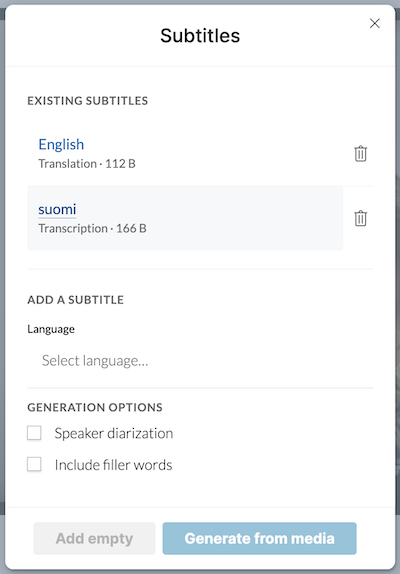
- Log in to Moniviestin and open the media page where you want to add subtitles.
- Click the Subtitles (speach bubble) icon in the top left corner to open Subtitle selection
- You can see existing subtitles, see image.
- You can Add a subtitle
- Select the primary spoken language in the video from the dropdown menu.
- Choose additional options if needed:
- Speaker separation: Different speakers in the video are identified with labels at the beginning of each subtitle block (e.g., "Speaker_01").
- Include filler words: When enabled, the speech recognition system includes filler words (e.g., “like”, “um”) for maximum accuracy. When disabled, subtitles are simplified by omitting filler words.
- Translate to English: Adds English subtitles generated via automatic translation in addition to the original language.
- Include filler words in translation: When enabled, the English translation includes filler words for accuracy. When disabled, the translation is simplified by omitting them.
- Once settings are configured, click Generate from media.
Moniviestin will display the progress of automatic speech recognition. When the progress bar reaches 100%, the subtitles are ready and visible on the media page. You can exit the editing view by clicking the Save icon in the top left corner.
Editing subtitles
To edit subtitles, you must have editing rights to the media page.
- First, log in to Moniviestin and navigate to the correct media page.
- Click the the Subtitles (speach bubble) icon in the top left corner of the page.
- Select the version you want to edit.
- Click the Edit (pencil) icon on the left
There are two editing modes available: Text Mode and Interactive Mode.
Text Mode
- In this mode, subtitles are manually edited in WebVTT format. You can modify both the timestamps and text content.
- The first line of the subtitle file must always read
WEBVTT. - Each subtitle block consists of two parts: a timestamp line and one or more text lines. The timestamp is automatically generated and should only be changed if you need to adjust when the subtitle appears or disappears. It’s important not to break the timestamp format: it starts with the start time, followed by a separator (
-->), and ends with the end time. - The text lines below the timestamp can be freely edited—they define what the viewer sees.
- Once you’ve made your changes, click Save at the bottom of the screen. To discard all changes, click Cancel.
- If you have a complete WebVTT subtitle file from another source, you can copy and paste the contents of the WebVTT file into this editor and save the changes.
Interactive Mode
- In this mode, subtitles are edited through a user-friendly interface. Editable text fields progress in sync with the recording, allowing you to listen and follow the subtitles, and pause playback to make corrections.
- You can set the start and end time of each subtitle line by navigating to the correct point in the recording, pausing playback, and clicking the Start or End button next to the timestamp.
- To delete a subtitle line, click the red X button.
- You can freely edit the content in the text field.
- To create a new subtitle line, pause the recording at the desired point and click Add new line.
- Once you’ve finished editing, click Save at the bottom of the screen. To discard all changes, click Cancel.
Removing Subtitles
- Log in to Moniviestin and go to the media page from which you want to remove subtitles.
- Click the folder icon (Content) on the left side of the screen.
- You will now see a list of contents related to that media page. Subtitles are named by language, for example, “Finnish.” Select the subtitle language you want to remove by checking its box and click the trash can icon (Delete) above the list. Note: Do not delete other items in the content view (e.g., 720p, Audio, etc.), as they are required for your video recording to play correctly.
Deleting a media page
Deleting a media page requires that you are logged in to Moniviestin and have editing rights for the program page in question. If you want to permanently remove a recording from Moniviestin, follow these steps:
- Go to the program page in Moniviestin where the content you want to delete is located.
- Click the folder icon (Content) on the left side of the screen.
- You will now see a list of all media pages (recordings) belonging to the program page. Select the media page you want to delete and click the trash can icon (Delete) above the list.
Note: Use the delete function with caution and make sure you are deleting the correct recording, as this action cannot be undone.